Actions & Stuff for Windows PC
On Windows, Actions & Stuff is for Minecraft Bedrock Edition, sold on PC as Minecraft for Windows. A Bedrock .mcpack can be opened with Minecraft for Windows so the game can import the resource pack. For full setup and resource guides, visit Action and Stuff.
This is different from Minecraft Java Edition. Java uses its own resource-pack system and does not natively use Bedrock .mcpack files.
This page provides the site’s approved Actions & Stuff v1.10 .mcpack, which is an older release rather than the newest official Oreville Studios version.
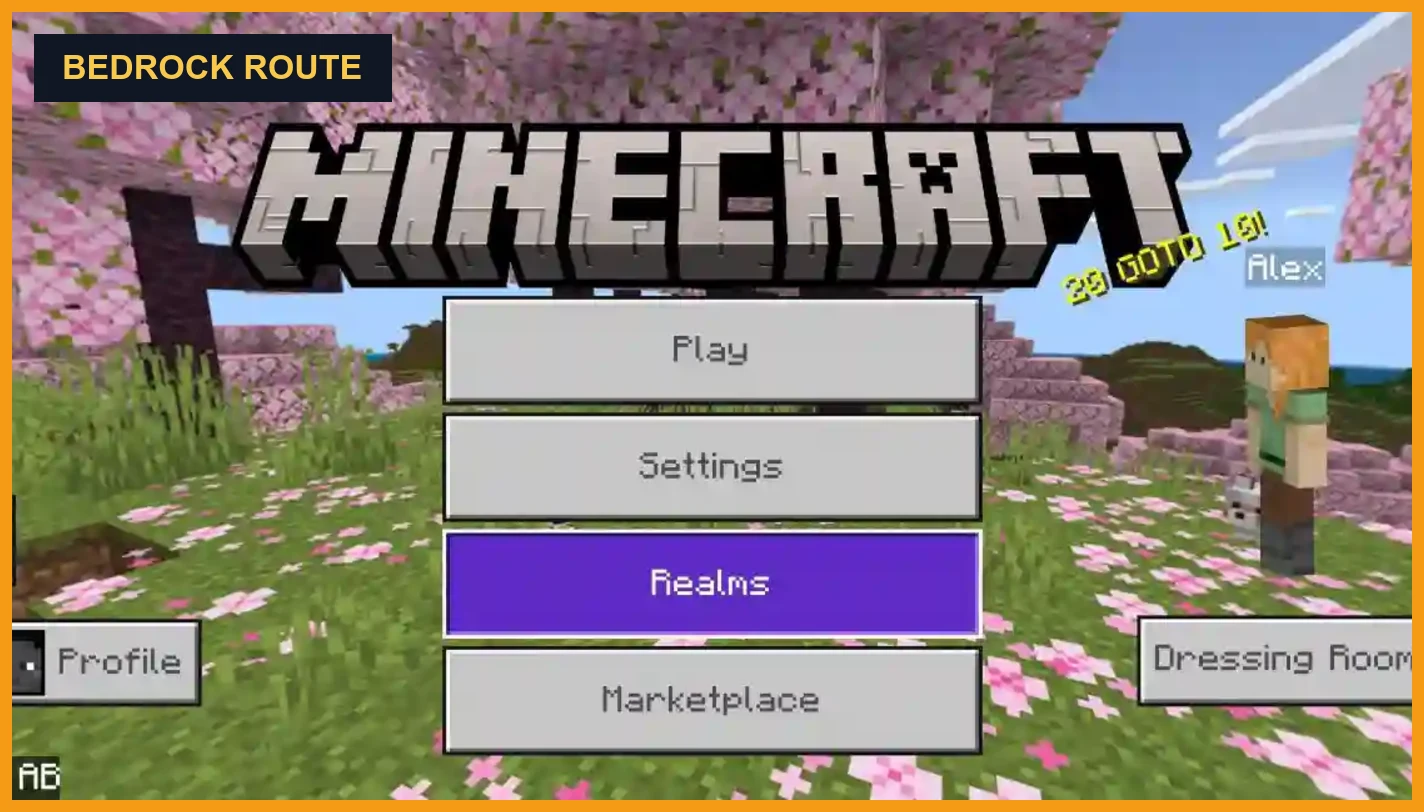
How to import Actions & Stuff on Windows
- Make sure Minecraft for Windows / Bedrock Edition is installed.
- Download the .mcpack.
- Open File Explorer and go to the folder where the file was saved.
- Open the .mcpack.
- If Windows asks which program should handle the file, select Minecraft for Windows.
- Minecraft should open and process the import.
- Open the world where you want to use Actions & Stuff.
- Enter the world’s settings and choose Resource Packs.
- Find Actions & Stuff and activate it.
- Start the world and check the result.
Microsoft’s Bedrock documentation describes opening .mcpack files this way on Windows so Minecraft can import them.
If Windows opens the MCPACK in the wrong program
Right-click the .mcpack and use Open with.
Select Minecraft for Windows rather than an archive program, text editor or image application.
If Minecraft is not offered as an option, first confirm that you actually have the Bedrock/Windows edition installed. Having only Minecraft Java Edition does not give Windows a Bedrock .mcpack handler.
Bedrock PC and Java PC are not the same route
Both editions can be installed on a Windows computer, which is why this causes so much confusion.
For this file:
- Minecraft for Windows / Bedrock → yes, this is the relevant edition.
- Minecraft Java Edition → no, this .mcpack is not a native Java resource pack.
If you only play Java, continue to the Java Edition guide instead of trying to convert the package by renaming it.
Choosing the pack’s texture style
Current Oreville documentation describes three Actions & Stuff texture styles:
- Full Experience — Uses the complete Actions & Stuff visual presentation.
- Vanilla Experience — Keeps the Actions & Stuff animations and 3D items while using a more vanilla-style texture presentation.
- Custom Experience — Designed for using Actions & Stuff alongside another texture pack.
The selector shown by Minecraft can differ between releases, especially with an older pack such as v1.10. Follow the settings displayed by the version you actually imported.
See Actions & Stuff settings for more detail.
Do you need special PC hardware for Actions & Stuff?
This page does not publish invented RAM, CPU or GPU minimums for the pack.
Performance depends on the computer, Minecraft settings, render distance, other active packs and the version of Minecraft being used. If the pack causes noticeable slowdown, start by reducing demanding Minecraft graphics settings and checking whether other active resource packs are contributing to the load.
Use the dedicated lag and FPS troubleshooting guide if performance is the problem you are trying to solve.
What if v1.10 imports but behaves incorrectly?
The site’s file is an older Actions & Stuff release while Oreville Studios has continued updating the official product.
A successful import does not prove perfect compatibility with every current Minecraft Bedrock build.
Before reinstalling anything, compare your Minecraft version with the information in the compatibility guide.
Is an Android emulator required?
No.
If your goal is to use the .mcpack with Minecraft for Windows / Bedrock Edition, you do not need an Android emulator.
Those APK/emulator workflows are a different setup and should not be mixed into this Windows Bedrock guide.
Compare Windows PC performance with our Action and Stuff Bedrock platform overview.