Actions & Stuff on iPhone and iPad
Actions & Stuff works with Minecraft Bedrock, which includes the mobile Minecraft version used on iPhone and iPad. For a manually downloaded .mcpack, iOS can hand the file to Minecraft so the game can import the resource pack. For full setup and resource guides, visit Action and Stuff.
This page uses the site’s approved v1.10 .mcpack. It is an older Actions & Stuff release; it should not be presented as the newest official Oreville Studios version.
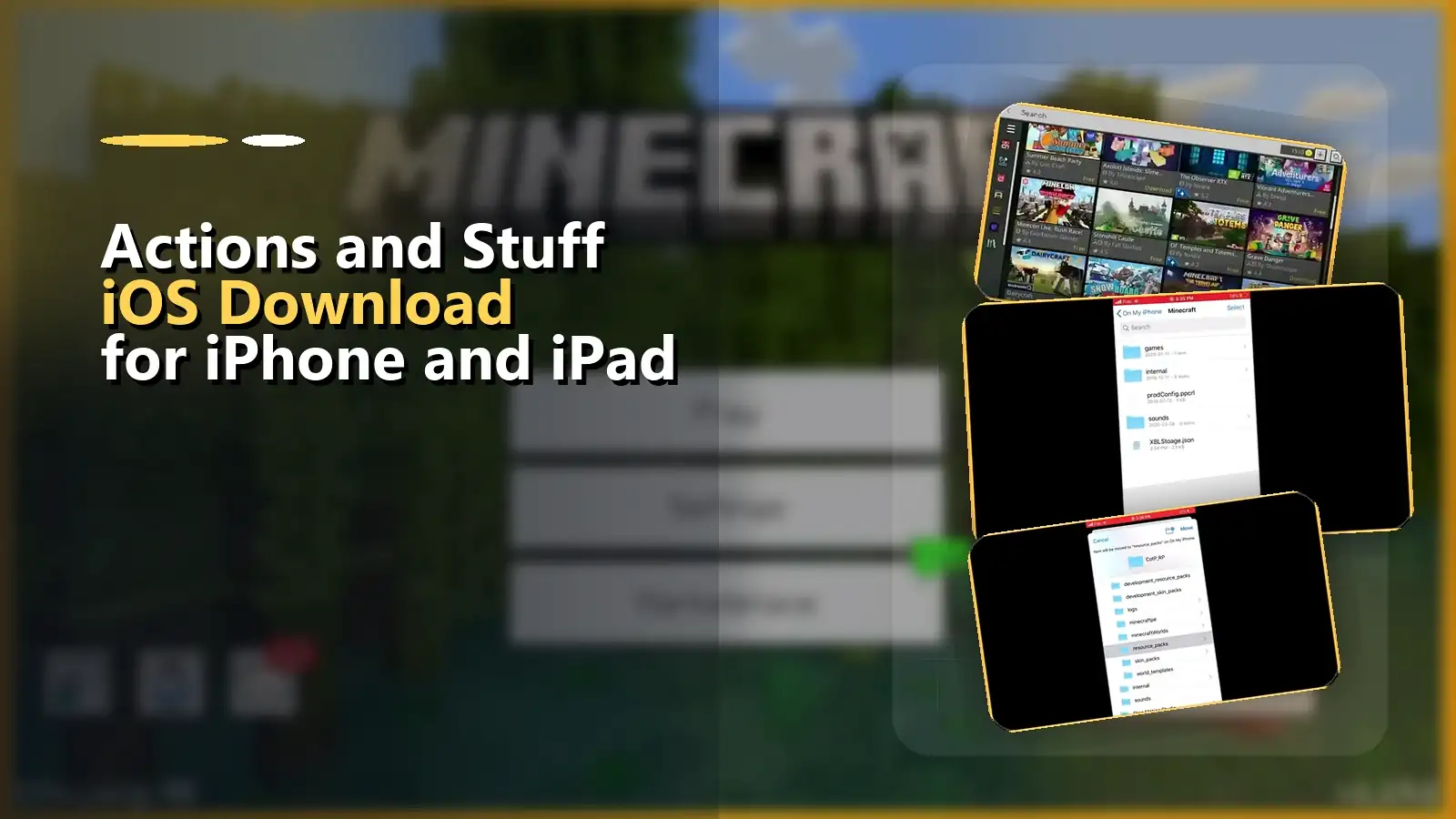
How to import the MCPACK on iPhone or iPad
- Download the .mcpack using Safari or another browser.
- Open the download from Safari’s download list or from the Files app.
- Tap the file.
- If iOS asks where to open or share the file, choose Minecraft.
- Minecraft should launch and begin importing the pack.
- Wait for the import to complete.
- Open the world where you want to use Actions & Stuff.
- Edit the world and open Resource Packs.
- Find Actions & Stuff and activate it.
- Load the world and confirm that the visual changes appear.
Microsoft’s Bedrock documentation describes the same general iOS workflow: open the world or Add-On file and choose Minecraft when iOS prompts for the application.
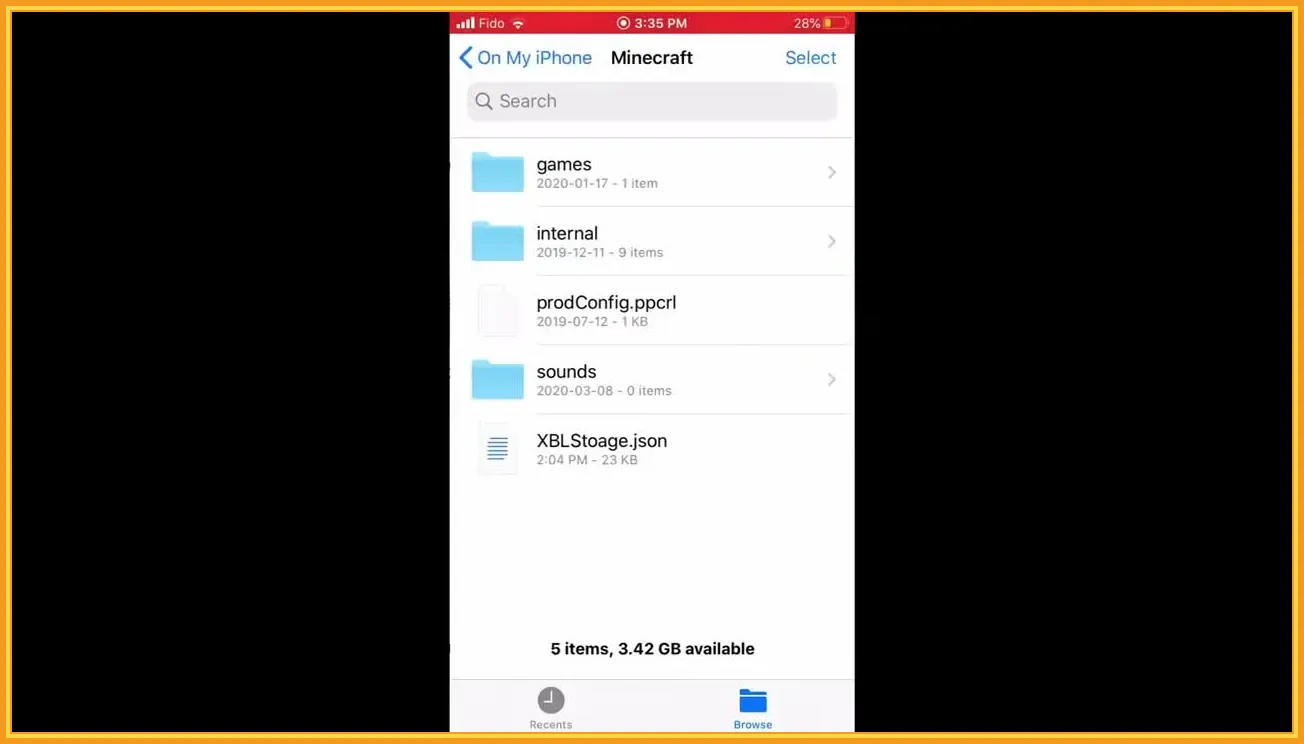
If Minecraft is not shown in the iOS share sheet
Open the Files app and locate the downloaded .mcpack.
Long-press the file or open its sharing options, then look for Minecraft in the app list. Depending on the iOS version, you may need to choose More before Minecraft becomes visible.
If Minecraft is installed but still does not appear, first confirm that you are working with the downloaded .mcpack itself rather than a web-preview page or an accidentally renamed archive.
Do not install unrelated file-manager or “APK installer” apps for this process. An APK is an Android application package and is not the correct format for iPhone or iPad.
Where to activate the pack
Importing the file does not automatically mean every world will use it.
Open the world you want to play, enter its settings and find Resource Packs. Activate Actions & Stuff for that world.
Current Oreville documentation also describes multiple texture styles for Actions & Stuff, including Full Experience, Vanilla Experience and Custom Experience. The exact selector visible in Minecraft may vary depending on the version of the pack you imported.
If you want help choosing a style, use the Actions & Stuff settings guide.
Does the v1.10 file work with every current iOS Minecraft build?
Do not assume that it does.
iPhone and iPad use Minecraft Bedrock, but both Minecraft and Actions & Stuff continue to receive updates. The v1.10 file on this page is older than the current official Actions & Stuff release.
If the import succeeds but the pack behaves incorrectly, check version compatibility before treating the problem as an iOS issue.
Common iPhone and iPad problems
The file downloaded but tapping it does nothing
Open the Files app, locate the .mcpack and use its Open/Share options to hand it to Minecraft.
Minecraft opens but the pack is missing
Restart Minecraft once and check the Resource Packs list again. Also confirm that the import process finished rather than being interrupted when switching apps.
The pack imports but a world still looks unchanged
Make sure Actions & Stuff is actually active for that world. If another resource pack changes the same visual assets, review the active pack order as well.
For broader problems, continue with the Actions & Stuff troubleshooting guide.
Is this the same as installing an IPA or APK?
No.
The file provided here is a Minecraft Bedrock .mcpack. It is not an iOS application package and it does not replace the Minecraft app.
If you want the complete cross-platform procedure, see how to install Actions & Stuff.
For general mobile settings, read the main Actions & Stuff MCPE guide.