Actions & Stuff Not Working? Start Here
Fix common Actions & Stuff problems in Minecraft Bedrock, including failed imports, missing packs, version conflicts, inactive resource packs and visual issues. For full setup and resource guides, visit Action and Stuff.
When Actions & Stuff is not working, the fastest fix is to identify where the process failed.
Do not start by reinstalling Minecraft.
First work out which of these situations matches your problem:
| Problem | Start with |
|---|---|
| The .mcpack will not open/import | File/import checks |
| Minecraft says the import succeeded but you cannot find the pack | Resource Pack checks |
| The pack appears but the world still looks normal | Activation checks |
| Some visuals are missing or broken | Version/conflict checks |
| The pack works but performance is poor | Lag/FPS guide |
| It works locally but not on a Realm | Realms guide |
| You specifically cannot find it in Global Resources | Global Resources guide |
The goal is to fix the failing stage rather than repeating the entire installation process.
1. The MCPACK does not import
If tapping or opening the .mcpack does not hand the file to Minecraft, first confirm that you are working with the actual downloaded file.
Check:
- the download completed;
- the file still has the .mcpack extension;
- you are not opening a browser preview page instead of the file;
- Minecraft Bedrock is installed on the device;
- the operating system is being asked to open/share the file with Minecraft.
On Windows, use Open with if another program has taken over the .mcpack file association.
On iPhone/iPad, use the Files app and Share/Open options if Minecraft does not launch directly.
On Android, use the downloaded file from your file manager and select Minecraft if the system asks which application should open it.
For full platform instructions, use the installation guide.
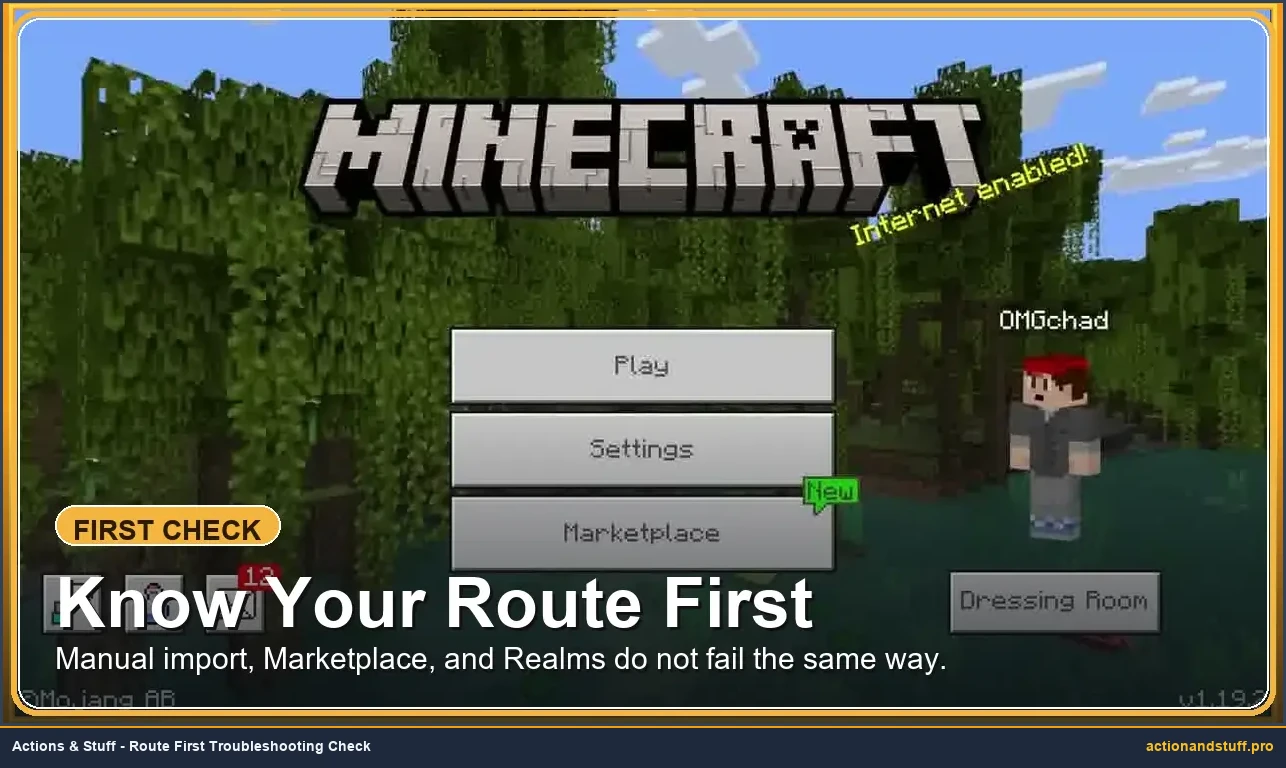
2. Minecraft says the pack imported, but you cannot see it
A successful import does not automatically activate a resource pack.
Open the world where you want to use Actions & Stuff and check its Resource Packs settings.
For an existing Bedrock world, the normal route is:
- open Play;
- edit the intended world;
- open Resource Packs;
- check the available/owned packs;
- activate the relevant Actions & Stuff pack;
- load the world again.
If you are looking only inside Global Resources and cannot see it there, use the dedicated Global Resources troubleshooting page. A world-level Resource Packs check is more useful than assuming the original import failed.
3. The pack is listed but the world still looks unchanged
Check that Actions & Stuff is actually in the world’s active resource-pack list rather than only the available list.
Then check whether another texture/resource pack is active at the same time.
Two packs can change overlapping assets. Pack order can therefore affect which textures or visual elements appear.
Current Oreville documentation specifically provides a Custom Experience option for players combining Actions & Stuff with another texture pack and advises placing the custom texture pack above Actions & Stuff when using that setup.
If you are deliberately mixing packs, use the settings guide rather than randomly changing pack order.
4. Some textures, models or animations are wrong
If Actions & Stuff is active but part of the visual experience is broken, investigate version and pack conflicts before reinstalling Minecraft.
Ask:
- Which Minecraft Bedrock version am I using?
- Which Actions & Stuff version am I using?
- Did the problem begin after updating Minecraft?
- Did it begin after changing Actions & Stuff?
- Is another resource pack or Add-On active?
- Does the problem disappear in a simple test world with only Actions & Stuff active?
This last check is useful because it separates a pack conflict from a general installation problem.
Do not test first on an important world if you can create a temporary test world instead.
5. Check the version before blaming the device
This site contains historical Actions & Stuff releases.
An older file can import successfully and still behave differently on a much newer Bedrock build.
At our September 2026 review, the current Marketplace listing requires Bedrock 1.21.120+, while this site also preserves historical v1.10 and older files.
That means: successful import ≠ guaranteed current-version compatibility.
Use the compatibility guide when the problem appeared after a version change.
6. Test without other resource packs
If several visual packs are active:
- create or use a test world;
- activate only Actions & Stuff;
- load the world;
- check whether the problem remains.
If it works correctly by itself, the issue is more likely to involve pack interaction or pack order.
Oreville has made compatibility improvements with other Add-Ons and texture packs across Actions & Stuff updates, but no pack can be assumed to work perfectly with every third-party modification.
7. Restart Minecraft after changing packs
When you have changed active resource packs, pack order or imported a new version, close and reopen Minecraft before doing more destructive troubleshooting.
A restart is a reasonable low-risk step.
Deleting Minecraft data, removing worlds or reinstalling the whole game should not be your first response to a resource-pack problem.
8. Do not delete your worlds as a troubleshooting shortcut
If an issue only affects Actions & Stuff, deleting worlds is rarely a sensible first test.
Use a temporary world instead.
Before making any major changes to Minecraft storage or replacing important content, back up worlds you care about.
9. If the problem is only performance
If the pack imports, activates and displays correctly but gameplay becomes slow, stuttery or inconsistent, the installation itself may be working.
Use the Actions & Stuff lag and FPS guide instead of repeatedly reinstalling the pack.
10. If the problem is only on Realms
For server-specific resource pack conflicts, see our Multiplayer & Servers Guide →.
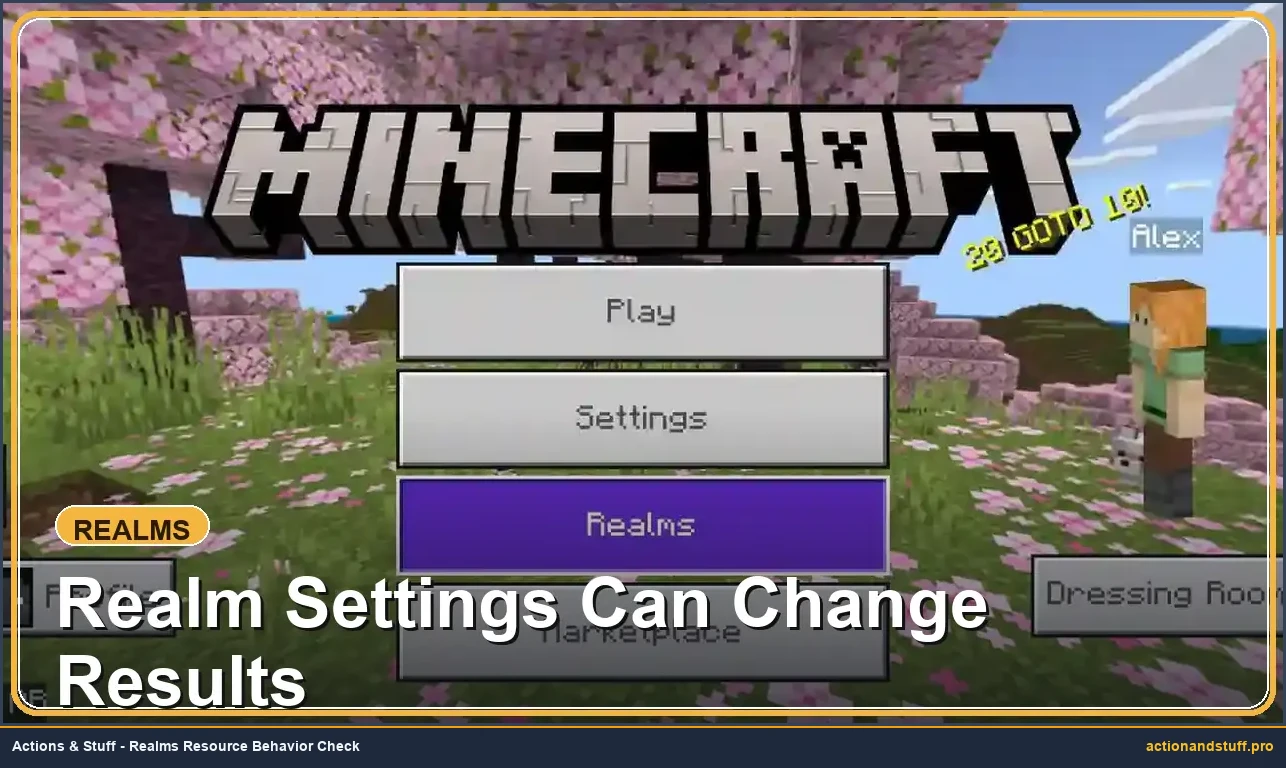
A Realm adds another layer because the Realm world has its own active content.
If Actions & Stuff works locally but not on the Realm, check the Realm’s own Resource Packs/Add-Ons configuration rather than only your local Global Resources settings.
Continue with the Actions & Stuff Realms guide.
Before you reinstall anything
Use this order:
- confirm the correct Minecraft edition;
- confirm the file imported;
- confirm the pack is active for the intended world;
- check the Actions & Stuff/Minecraft version combination;
- test with other packs disabled;
- restart Minecraft;
- test in a temporary world;
- investigate the specific symptom page.
Only consider a complete game reinstall after normal pack-level diagnosis fails and you have protected your worlds/data.
For mobile file path issues, consult our Actions & Stuff Bedrock guide.